How to move your journal entries from Day One to Apple Journal (and why)

I've been writing about journaling for nearly as long as I've written on this site. (20+ years) It's a practice that helps me immensely in the moment and in retrospect. In my own journal I have early 9,000 entries since 1992.
For the last 15 years of journal writing, I've been using Day One. As one of the very early users, I even worked with (and befriended) the founder. I remain a big fan of the app and use it daily.
Now that my street cred is established, a few things that cause hesitation for me with Day One:
- My wife and kids are committed journal writers too. With six of us, and no Family Sharing on the subscriptions, the yearly cost does add up.
- I don't love the recent addition of AI features and the push to upgrade to Day One Gold. I want exactly zero AI in my journal writing.
- Over a decade ago, Day One Sync was established and the app moved away from iCloud/Dropbox. To the team's credit, it has been a very reliable service and there have been good efforts for privacy and transparency. Even so, journals are so private and important and the mind wonders if all the data is safe and secure.
- I was a big fan of Wordpress/Automattic for many years. This site was running on Wordpress for twenty years until a transition to Ghost just a couple years ago. That said, things seem to be going a little strange at Automattic lately and they are the owners of Day One since 2021.
Apple Introduces Apple Journal
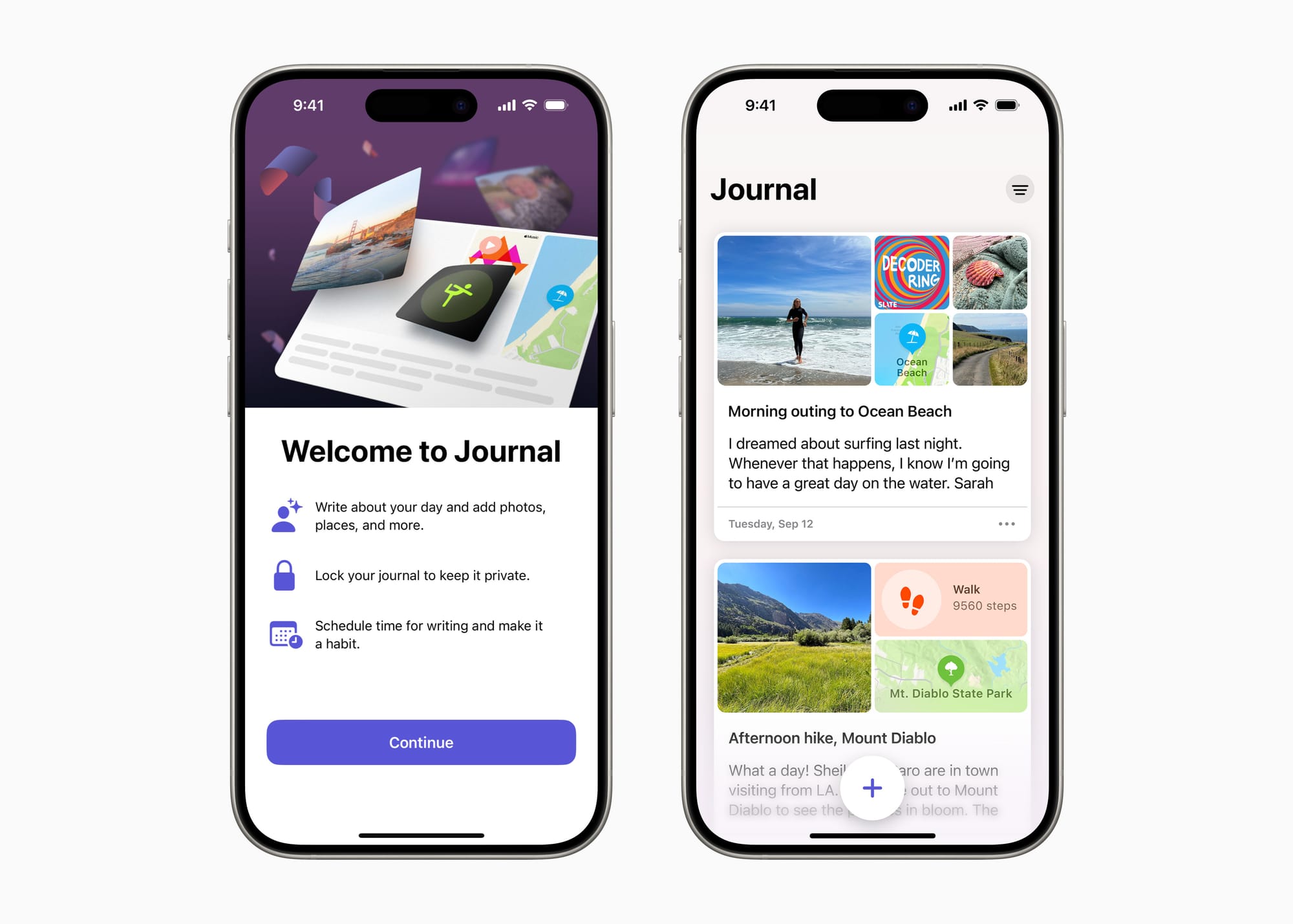
A few years ago, Apple released a journal app of their own called...Journal. I tried it when it was first released with occasional entries but it was not ready for a jump over. As usual with Apple, they start pretty basic and build over time.
With the release of macOS/iOS 27 though...it's getting pretty good. The sync is much faster, the photo management in posts is more reliable, and there are more stats and metadata available.
A few observations though:
- Hopefully you like the color purple because in dark mode it's definitely purple.
- I wish the Mac version behaved even more like an actual Mac app. For instance, clicking an entry should open the entry in its own window.
- Apple Journal doesn't currently offer an "On This Day" feature, which we all LOVE in our family. The best solution for now is to run a shortcut like this one.
It's not totally right for me yet but Apple Journal is the right choice for many since it's free and available on every Apple device. It's an easy recommendation to those just beginning a journal. It is a solid backup journal for me and a primary journal for my kids to use...which brings me to the reason for this post.
Moving Entries from Day One to Journal

For the last year, most people have been using a combination of Day One Export and Apple Shortcuts to move entries to Journal. I've tried many scripts with varying success. Recently, Felix Wong gave a nice overview of how he did it but even that method came up a bit short since it didn't bring over photos. If you're committed, you can probably find a way to add photos as well.
The reason for this post is a recent offering called apple-journal-cli. It allows you to "read and write Apple Journal entries from the terminal" and provides means for "text, photos, videos, Live Photos, web links, location pins, bookmarks, multiple journals." Impressive!
Even better, it offers a "dayone-import" skill which "migrates Day One journals into Apple Journal, entry by entry, with photos, locations, titles and bookmarks intact." Super impressive!!
It does this by reading "Day One's own SQLite store rather than" an export. Spoiler: It's super fast and super thorough.
The Process
I ran this script on a Mac mini server that I have here in my house. On this machine, I downloaded a full copy of Day One data including full size images.
This machine also is logged into my iCloud account so when the entries go into journal it syncs to all of my personal devices.
The Mac will also need Xcode and Developer Tools installed.
From there, it's pretty simple. I'm going to write the steps below for the record's sake, but really you can drop the link to GitHub into your AI of choice and have it walk you through the process specific to your needs.
- Backup your Day One journals. (This tool is read only, but I take no chances.)
- Use Homebrew (brew install omarshahine/tap/journal-cli) to install then grant Full Disk Access to the terminal app in System Settings > Privacy & Security, and confirm access. (run journal-cli doctor)
- Confirm your Day One Journal names by running the bundled import script: (python3 skills/dayone-import/scripts/dayone-import.py journals)
- Run (dayone-import.py plan "<Journal Name>") to see what will import cleanly and what won't — this flags entries with cloud-only media that hasn't downloaded locally, and anything the tool can't carry over
- Be sure Journal app is closed and run (dayone-import.py import "<Journal>" --into "<Target>") to write to the live store. Imports are resumable and keyed by Day One's entry UUIDs, so re-running never double-writes.
- Open Apple Journal and spot-check entries, to confirm text, dates, locations, and media landed correctly. Give it time to sync to iCloud across other devices.
Helpful Information
I ran this process on my main journal of 9000 entries and it took about ten minutes. It almost seemed too easy and yet, there are all the journal entries parked perfectly in Journal with dates, locations, and photos. Over time, they landed on my iPhone, iPad, and MacBook.
The one import hurdle I hit was that the Journal app doesn't yet support PDFs and I have some scans included in my early paper journal entries. (I also have each PDF transcribed in the dated post so the entry text came over, just not the PDF.)
So What Now?
For my kids, this will probably be their new journal once their yearly Day One subscription runs out unless Family Sharing is enabled for subscriptions.
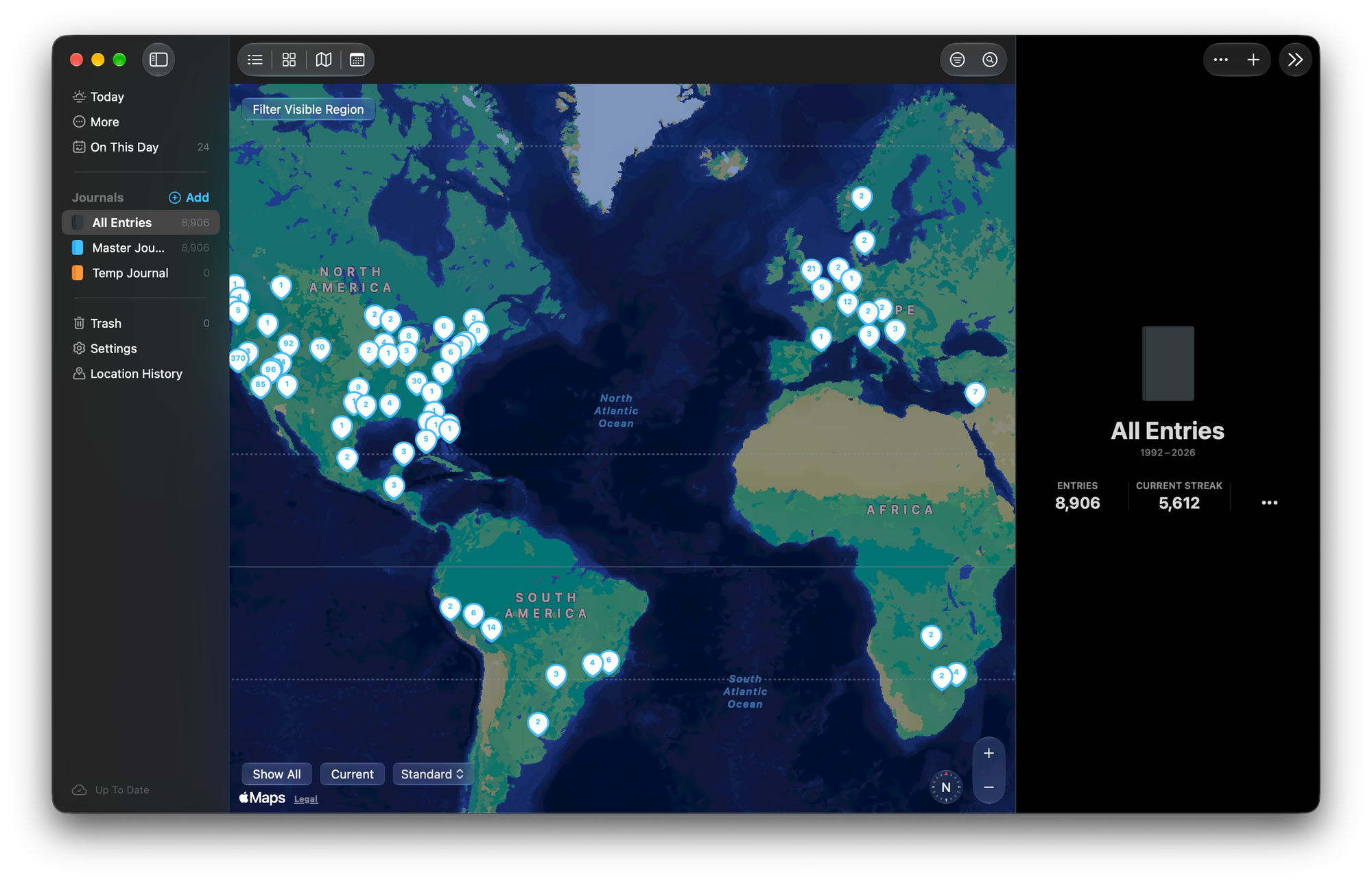
At this time, I will continue to use Day One as my main journal. The way I see Journal app right now is as an incredibly capable backup. Rather than a JSON or pile of text files, I have a backup journal that looks and reads like a journal. Should anything happen to Day One, their service, or my data then that's a pretty quick recovery.
The nice thing about the script is that it tracks which entries are ported. So, if I run this again in a year, just the entries from the last year will be added to Journal.
With this script and an improving Journal app, it's nice to have a thorough and automated way to keep my most cherished writing safe and secure.
Feedback? Send me an email.